How to Share a Calendar on iPhone: The Complete Guide
Share a calendar on iPhone in four taps using iCloud, then add Family Sharing, Google or Outlook feeds, an Android link, and fixes for events that won't sync.
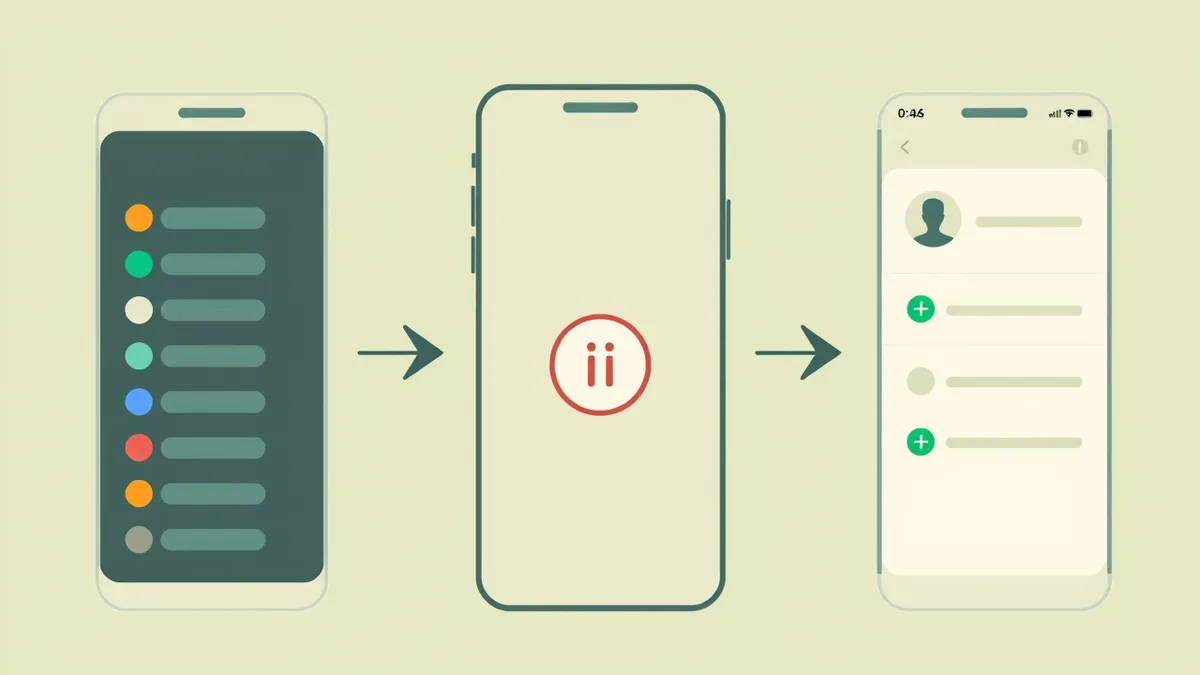
Shared CalendarsTo share a calendar on iPhone, open the Calendar app, tap Calendars, tap the info (i) button next to the calendar you want, choose Add Person, then enter a name, email or phone number and tap Add. The person gets an invite, and once they accept, your events appear on their device. Here is the full sequence:
- Open the Calendar app and tap Calendars at the bottom of the screen.
- Find the iCloud calendar you want to share and tap the info (i) button to its right.
- Under Shared With, tap Add Person.
- Type an email address, phone number or contact name, then tap Add in the top-right corner.
That is the core of it, and it matches Apple's own "Share iCloud calendars" instructions (steps current as of June 2026). The rest of this guide covers permissions, Family Sharing for an all-Apple household, subscribing to Google or Outlook calendars, sharing a read-only link with Android users, and the quick fixes when shared events stop updating.
One requirement to know upfront: the person you invite needs an iCloud account to accept a private share. If they do not have one, skip to the public link method, which works for anyone.
Set permissions: View & Edit or View Only
When someone accepts your invite, they get View & Edit access by default. That is right for a partner co-running the household schedule, but often you only want someone to see your plans, not change them.
To set the access level:
- Open the calendar's info (i) screen and tap the person's name under Shared With.
- Toggle Allow Editing off to drop them to View Only, or leave it on for full access.
- View & Edit: add, change and delete events. Treat this as co-owner access for a spouse or partner.
- View Only: see everything, change nothing. Best for a babysitter who needs the kids' schedule, a grandparent kept in the loop, or anyone you do not want editing events by accident.
A practical rule from supporting OneHaus households: reserve View & Edit for the one or two people you genuinely plan alongside, and default everyone else to View Only. It avoids the awkward moment when a shared event quietly disappears and nobody knows who deleted it.
Why your iPhone will not let you share a calendar
If there is no Add Person option, or it is greyed out, the steps above are not wrong: the calendar you picked almost certainly cannot be shared this way. Four causes account for nearly all of it.
The calendar is not an iCloud calendar. This is the usual one. Only calendars under the iCloud heading in the Calendars list support Add Person. A calendar that arrived from Gmail, from a work Exchange account, or from a subscription feed lives under its own heading, and Apple gives it no sharing option at all (the recurring answer across Apple's own support threads). Scroll the Calendars list and check which heading yours sits under. If it is not iCloud, share it from the service that owns it instead: for Google that means sharing it in Google Calendar, and for a work calendar it means sharing from Outlook.
Calendars are switched off in iCloud. Go to Settings > [Your Name] > iCloud, tap Show All, and check that Calendars is on. With it off, your calendars never reach iCloud, so there is nothing to share.
The contact has no email address. When you type a name and it appears greyed out and unselectable, that contact has no email address saved. Apple sends calendar invites by email, so add one to the contact card, or type the email address directly instead of picking the name.
The calendar is one you subscribed to. A subscribed feed is somebody else's calendar mirrored onto your phone. You cannot re-share it, which is covered in more detail below.
The quickest way to tell the difference: create a brand new calendar (Calendars > Add Calendar) and check whether Add Person appears on it. If your phone has more than one calendar account signed in, it will ask which account to put it in, so choose iCloud: a calendar created under Gmail or Exchange has the same missing Add Person problem as the one you started with. If the new iCloud calendar can be shared, the original calendar was the problem, not your setup.
Sync your calendar with your partner
The most common reason people come to this at all is wanting one schedule across two phones. Sharing a single iCloud calendar with View & Edit does that: both of you see the same events, and either of you can add or change them from your own phone.
Two things make it work in practice rather than just technically. Share a calendar created for the purpose, something like "Us" or "Household", rather than sharing your personal one, so work meetings and dentist appointments do not end up in each other's view. And make sure the person you invite accepts on a device signed into their own iCloud account: an invite accepted on a shared iPad signed in as you will appear to do nothing.
If one of you is on Android, a private share will not land in their native calendar app: Apple sends the invite to an Apple Account, and Android's built-in Calendar cannot subscribe to a private iCloud share. They can still see it by signing in to iCloud.com in a browser, but nobody wants to check a second website every day. Skip to the public link method, which is read-only, or use an app that syncs both ways across platforms. If juggling two calendars across a couple is the real problem, a shared household calendar might solve it more directly than any of the workarounds above.
Use Family Sharing for an all-Apple household
If everyone in your home is on Apple devices, Family Sharing is the fastest route. When you set up a Family Sharing group, Apple automatically creates a shared Family calendar, and everyone in the group gets access the moment they join. There are no invites to send or accept.
To create the group, go to Settings > [Your Name] > Family Sharing, then Add Member. Once people are in, any event added to the Family calendar appears on every member's iPhone, iPad and Mac.
The catch is that a single Family calendar fills up fast. Two habits keep it readable:
- Colour-code by person. The Calendar app will not permanently assign a colour to a person, but you can pick a colour each time you add an event, for example red for one parent, blue for another, green for the kids. A glance at the week then tells you who is busy without opening anything.
- Use recurring events. For anything on a loop, weekly swimming, fortnightly bin collection, tap Repeat when creating the event and set the frequency once. Pair it with an alert so a reminder fires the evening before.
Subscribe to Google or Outlook calendars
Not every household lives entirely in Apple's ecosystem. If your partner uses Android or your work runs on Outlook, you can subscribe to those calendars so they appear inside the iPhone Calendar app alongside your iCloud events.
Subscribing is a one-way, read-only feed: you see every event, but you cannot add, edit or delete from your iPhone. You first need a subscription link, usually ending in .ics.
Get the Google Calendar link (do this on a computer):
- Open Google Calendar in a browser.
- Hover over the calendar in the left-hand list, click the three-dot menu, and choose Settings and sharing.
- Scroll to Integrate calendar and copy the Secret address in iCal format. Use the secret address, not the public one, to keep events private.
Get the Outlook calendar link (use the web version):
- Sign in to Outlook.com and open Calendar.
- Click the settings gear, then View all Outlook settings.
- Go to Calendar > Shared calendars, choose the calendar under Publish a calendar, set permissions to Can view all details, and click Publish.
- Copy the ICS link from the two that appear.
Add the link to your iPhone:
The quickest route is inside the Calendar app itself:
- Open the Calendar app, tap Calendars, then Add Calendar and Add Subscription Calendar.
- Paste the
.icslink, then tap Next and Save. The events now show in your Calendar app.
You can also add it from Settings: Settings > Apps > Calendar > Calendar Accounts > Add Account > Other > Add Subscribed Calendar, then paste the link and save.
Can you share a calendar you have subscribed to?
No. Only the original owner of a calendar can share it with others; a calendar you have subscribed to cannot be re-shared or forwarded from your iPhone (confirmed on Apple's own community forum). If someone else needs the same feed, send them the same subscription link so they can subscribe to it themselves, or ask the calendar's owner to share it with that person directly.
Because this feed is read-only, many households eventually want true two-way syncing across devices. That is exactly the gap OneHaus fills: one shared household calendar that everyone can edit from their own phone, not a one-way mirror.
Share with Android users via a public link
You cannot add an Android user as an editor on an iCloud calendar, but you can give them a read-only public link to subscribe to.
- Open the Calendar app and tap Calendars.
- Tap the info (i) button next to the calendar you want to publish.
- Turn on Public Calendar, then tap Share Link and send it by Messages, Mail or copy.
This generates a Webcal link, and recipients do not need an iCloud account to view it. They can add the link to Google Calendar or another app and see your events, but it stays one-way: they will never be able to edit. Turning Public Calendar off again makes the calendar private and breaks the link.
Worth knowing before you send it: "public" is literal. Anyone who ends up with that link can subscribe without signing in to anything, so treat it as readable by strangers if it is ever forwarded. For a household calendar carrying addresses, school pickups or times the house is empty, share it only with people you would give a key to, and turn Public Calendar off the moment you no longer need it.
Quieten the notifications
Shared calendars can ping you for every edit anyone makes, which is the fastest way to start ignoring the calendar altogether. Two settings tame it:
- Per-calendar alerts: Settings > Notifications > Calendar lets you silence noisy calendars (a meal-plan calendar rarely needs alerts) while keeping appointments loud.
- Shared calendar changes: when you publish or share a calendar, tap Customise Notifications and turn off Shared Calendar Changes so you stop being told every time someone adds an event.
You can also set a default reminder so you are not adding one by hand each time. Go to Settings > Calendar > Default Alert Times and set a standard alert for events (say, 1 hour before) and all-day events (say, 9am on the day).
Where the built-in app runs out of road
The native Calendar app handles a single household well, but a few limits surface quickly: subscribed Google and Outlook feeds are read-only, Android users can only ever view, and there is no way to attach shared tasks, lists or meal plans to the schedule. Everything lives in separate apps.
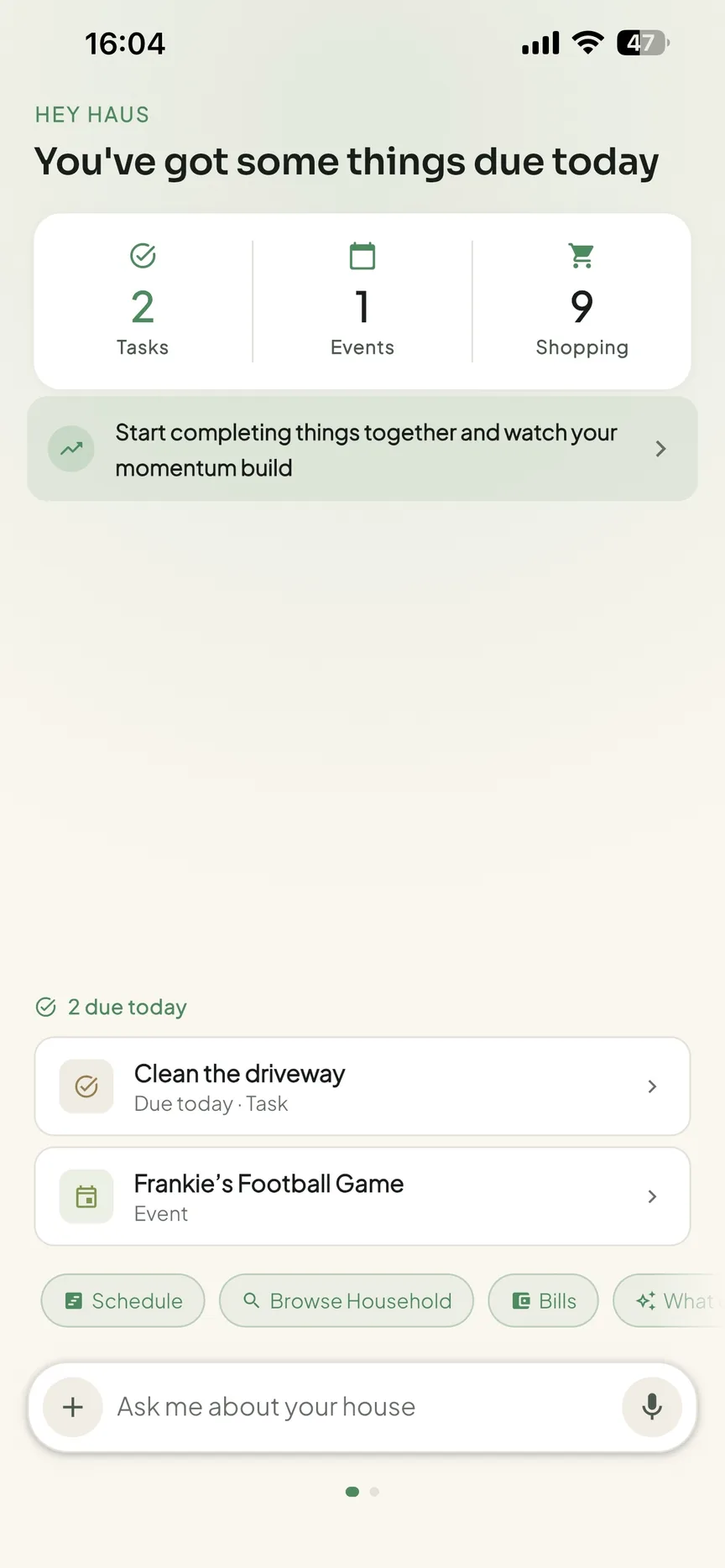
OneHaus pulls the schedule, shared to-do lists, shopping and meal plans into one place that the whole household can edit from any phone, with one subscription covering everyone. It can also import national and religious holidays plus any ICS or webcal feed, such as school term dates, fixtures or bin collection days, straight into the shared calendar: see how to add holidays and calendar feeds. If the one-way iCloud limits keep tripping you up, start a free 30-day OneHaus trial and see your family's week in a single view.
For more on building a routine around a shared schedule, see our guide to setting up a family shared calendar.
Frequently asked questions
Can I share my iPhone calendar with an Android user?
Yes, but only as a read-only feed. Android users cannot edit or add events to an iCloud calendar. Open your Calendar app, tap Calendars, tap the info (i) icon next to the calendar, turn on Public Calendar, and share the link that appears. They can add that link to Google Calendar to see your events, but it stays one-way.
Why won't my iPhone let me share a calendar?
Because the calendar you selected is almost certainly not an iCloud calendar. Only calendars listed under the iCloud heading offer Add Person; anything arriving from Gmail, a work Exchange account or a subscription feed has no sharing option in the iPhone Calendar app at all. Check which heading your calendar sits under in the Calendars list. The other three causes are Calendars being switched off under Settings > [Your Name] > iCloud > Show All, the contact you are trying to add having no email address saved, and the calendar being one you subscribed to rather than one you own.
Why can't I add a person to my iPhone calendar?
If Add Person is missing entirely, the calendar is not an iCloud calendar. If Add Person is there but the contact you type appears greyed out, that contact has no email address on their contact card: calendar invites go out by email, so add one or type the address directly. To confirm which it is, create a new calendar under Calendars > Add Calendar, picking iCloud if your phone asks which account to use, and see whether the option appears on it.
How do I sync my iPhone calendar with my husband or wife?
Create a calendar for the two of you rather than sharing your personal one, then share it with View & Edit so you can both add and change events. Open Calendar > Calendars > Add Calendar, choose iCloud if asked which account, name it, tap the info (i) button next to it, choose Add Person, and invite them. They need to accept on a device signed into their own iCloud account. If one of you uses Android, a private share will not reach their native calendar app, so use a read-only public link or a cross-platform app instead.
Why are my shared calendar events not updating?
It is almost always connection or an iCloud toggle. Work through these in order:
- Check everyone has stable Wi-Fi or mobile data.
- Go to Settings > [Your Name] > iCloud, tap Show All, and confirm Calendars is switched on (green).
- Open the Calendar app and pull down on the screen to force a manual refresh.
- Make sure everyone is on the latest iOS version, as outdated software can cause sync conflicts.
- As a last resort, remove the person from the calendar and re-invite them.
How do I stop sharing a calendar on my iPhone?
Open the Calendar app, tap Calendars, and tap the info (i) button next to the shared calendar. To remove one person, tap their name and choose Stop Sharing. To kill a public link, toggle Public Calendar off, which makes the calendar private again immediately.
Does the person I share with need an iCloud account?
For a private share (Add Person), yes, they need an iCloud account to accept the invite and see the calendar. For a public link (Public Calendar), no, anyone can view it in a compatible calendar app without an iCloud account.
Can I have multiple shared calendars?
Yes, and separate calendars are easier to manage than one crowded one. To create another, open the Calendar app, tap Calendars, then Add Calendar at the bottom-left, give it a name and colour, and share it. For example, a Family calendar shared with your partner, a Work calendar shared with colleagues, and a Weekend Plans calendar shared with friends.