How to Share a Calendar in Outlook: Step-by-Step Guide
Share an Outlook calendar in a few clicks on the web or desktop, set the right permission level, publish a link for non-Outlook family and sync it to an iPhone.
Shared CalendarsTo share a calendar in Outlook, open Calendar, click Share at the top right, pick the calendar, type the person's email address, choose how much they can see, and click Share. They get an email invitation, and once they accept, your events appear alongside their own. Here is the core sequence in new Outlook and Outlook on the web:
- Open Outlook and switch to the Calendar view.
- Click Share in the top-right toolbar (or right-click the calendar in the left list and choose Sharing and permissions).
- Enter the name or email address of the person you want to share with.
- Pick a permission level from the dropdown, then click Share.
That covers the everyday case, and it matches Microsoft's own guidance. The rest of this guide walks through the permission levels in plain English, the slightly different steps in classic desktop Outlook, how to publish a link for people who do not use Outlook at all, how to get the shared calendar onto an iPhone, how to open a calendar someone has shared with you, and what to do when a shared calendar will not show or update. At the end, a note on where Outlook calendar sharing starts to creak for a busy household. All steps below are current as of June 2026.
Choose the right permission level
Outlook gives you more control than most calendar apps, which is useful once you know what each level actually means. When you share, you pick one of these:
- Can view when I'm busy: the person sees blocks of free and busy time, but no event titles or details. Good for a colleague booking meetings around you.
- Can view titles and locations: they see what and where, but not notes or attendees. A reasonable middle ground.
- Can view all details: they see everything on the calendar. This is the level most households want for a partner.
- Can edit: they can add, change and delete events. Treat this as co-owner access.
- Delegate: edit access plus the ability to receive and respond to meeting invitations on your behalf. This is a work feature you rarely need at home.
A practical rule from supporting OneHaus households: give Can edit only to the one or two people you genuinely plan alongside, and default everyone else to Can view all details. It avoids the awkward moment when an event quietly disappears and nobody will own up to deleting it.
One thing to know upfront: what you can share depends on the account. A work or school account (Microsoft 365 or Exchange) supports the full set of permissions and lets colleagues in the same organisation see rich detail. A personal Outlook.com account can still share, but people outside Outlook may only get a view-only link rather than two-way access.
Share from classic desktop Outlook
If you are on the classic Outlook desktop app for Windows rather than new Outlook, the steps differ slightly:
- Open Calendar and select Home on the ribbon.
- Click Share Calendar, then choose the calendar you want to share.
- In the box that opens, click Add, search for the person, and select them.
- Set their permission level under Permissions, then click OK. They receive a sharing invitation by email.
To change or revoke access later, open the same Calendar Properties > Permissions tab, click the person's name, and either change the level or choose Remove.
Publish a link for people who don't use Outlook
Private sharing assumes the other person also has a Microsoft account. For anyone outside that, a parent on Google Calendar, a babysitter, an Android phone, you can publish the calendar as a link instead. This creates a read-only feed that works in almost any calendar app.
- In Outlook on the web, click the Settings gear, then go to Calendar > Shared calendars (Microsoft's calendar publishing guide confirms this path).
- Under Publish a calendar, choose the calendar and the level of detail to share.
- Click Publish, then copy the ICS link (for subscribing in another app) or the HTML link (for viewing in a browser).
Send the ICS link to whoever needs it. They can add it to Google Calendar, Apple Calendar or another app and your events will appear and update on their side. The trade-off is that it is strictly one-way: they can see everything you publish, but they can never add or edit. A subscribed ICS feed does not refresh the instant you change something. The receiving app pulls updates on its own schedule, so a new event can take several hours to surface on their side. Turning publishing off again breaks the link immediately.
How to sync an Outlook calendar with an iPhone
A common follow-on question: you share or own an Outlook calendar, and now you want it on your iPhone next to your other events. There are two routes, depending on whether you want it two-way or read-only.
Add the whole account (two-way):
- On the iPhone, open Settings > Calendar > Accounts > Add Account.
- Choose Outlook.com for a personal account, or Microsoft Exchange for a work or school account.
- Sign in, then make sure the Calendars toggle is on.
Your Outlook calendar now appears in the iPhone Calendar app, and events you add on the phone sync back to Outlook.
Subscribe to a published link (read-only):
- Publish the calendar and copy the ICS link, as above.
- On the iPhone, go to Settings > Calendar > Accounts > Add Account > Other.
- Tap Add Subscribed Calendar, paste the link, then tap Next and Save.
Use the account method when it is your own calendar and you want to edit on the go. Use the subscription method when it is someone else's calendar and you only need to see it.
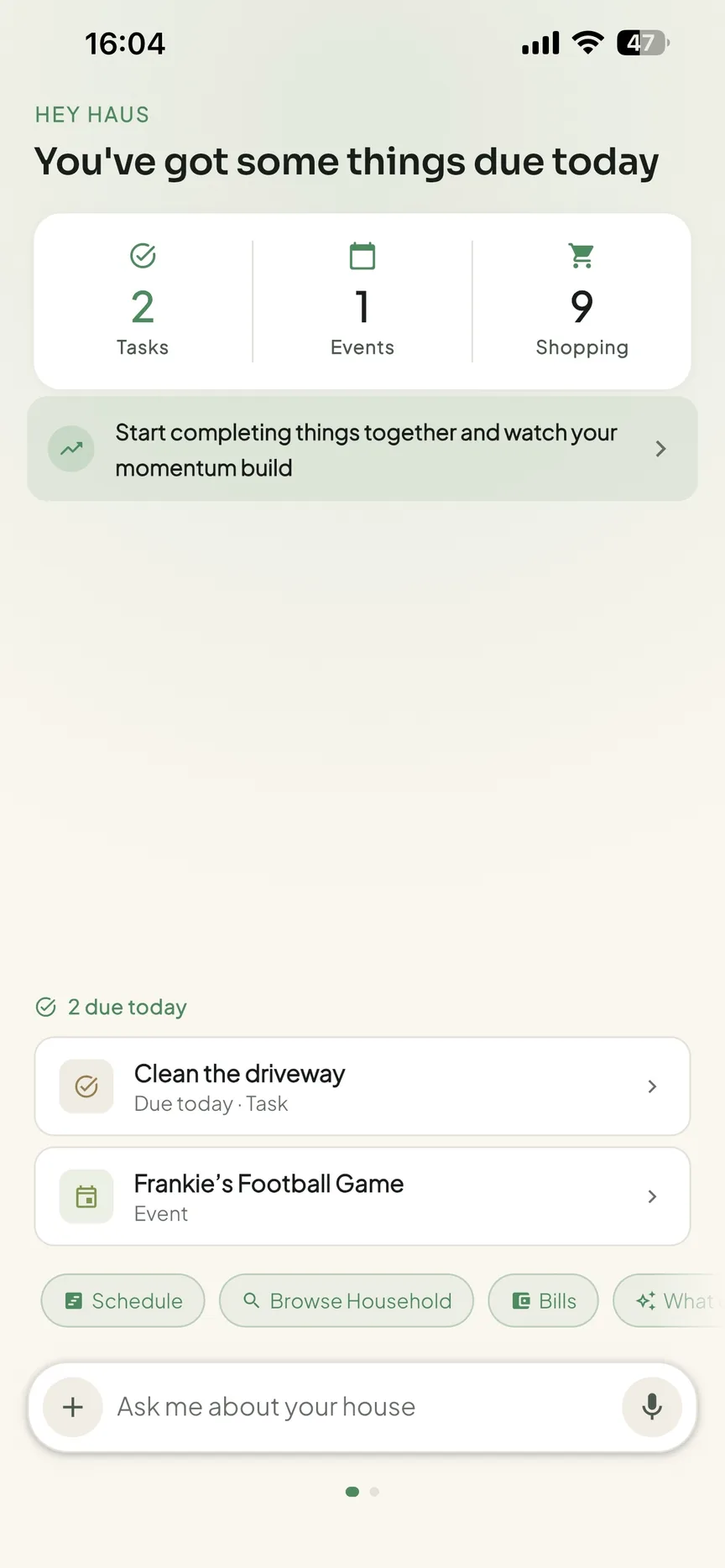
Once the calendar lands on the phone, the day reads in one glance, which is the whole point of getting it off the desktop and into a pocket.
How to open a calendar someone shared with you
So far this guide has been about sharing your own calendar. The other half of the job is opening a calendar that someone has shared with you, and the steps differ depending on how they shared it.
If they sent you a sharing invitation by email: open the message and click Accept. Outlook adds their calendar to your list automatically, and it appears under Other calendars (or People's calendars) in the left-hand pane. Tick it to overlay their events on your own. This is the simplest route and works for both work and personal accounts.
In new Outlook or Outlook on the web, add it manually: if there is no invitation to accept, or you dismissed it, you can pull the calendar in yourself.
- Switch to the Calendar view.
- In the left pane, select Add calendar (or right-click Other calendars and choose Open calendar).
- Choose Add from directory, pick the account whose calendar you want to add, then type the person's name or email address and select them.
- Click Add (or Open). Their calendar drops into your list, ready to tick on or off.
Add from directory only finds people inside your own organisation, so it is a work or school account feature. For someone outside the organisation, you need the email invitation or a published link.
In Outlook.com (a personal account): open Calendar, then in the settings or the Add calendar panel look for Add from directory or Subscribe from web. To add a colleague's or family member's personal calendar, the cleanest path is usually the sharing invitation they send you, or the published ICS link covered earlier, which you paste under Subscribe from web.
View several shared calendars at once
Once you have a couple of calendars added, Outlook can show them together or keep them apart, which matters as soon as more than two people are involved.
- Overlay view stacks every ticked calendar into one grid, with each calendar in its own colour. It is the quickest way to spot a clash, because everyone's events sit in the same week at a glance. To overlay, tick the calendars you want, then use the small arrow on a calendar's tab to merge it into the main view.
- Side-by-side view gives each calendar its own column. It is clearer when you want to read one person's day in isolation without colours blurring together. Untick the overlay arrows to split them back out.
If you regularly look at the same set together, group them. Right-click Other calendars and choose New calendar group, give it a name like Household, and drag the relevant calendars into it. A calendar group lets you switch the whole set on or off with one tick rather than hunting through a long list, which keeps a busy shared view manageable.
Shared Outlook calendar not showing or not updating
If a calendar you were given access to is missing, blank, or stuck on old events, work through these in order. Most cases are one of the first three.
- Confirm the invitation was accepted. A shared calendar only appears after you click Accept on the email invite, or add it manually with Add from directory. If you never accepted, ask the owner to resend, or add it yourself.
- Check you are signed into the right account. Work and personal calendars do not mix. If a colleague shared from a Microsoft 365 work account but you are looking in your personal Outlook.com, you will never see it. Switch to the matching account.
- Make sure the permission level is high enough. If you can see the calendar but not the detail you expected, the owner may have shared at Can view when I'm busy rather than Can view all details. Only they can raise it.
- Allow time for the first sync. A newly shared calendar usually populates within a few minutes. On a work or school account it can occasionally take longer, so give it a little while before assuming it is broken.
- Untick and re-tick the calendar, or remove and re-add it. In the calendar list, switch it off and back on to force a refresh. If that fails, right-click it, choose Remove, then add it again with Add from directory or by re-accepting the invitation.
- Confirm it is actually visible in your calendar list. It is easy to have a calendar added but unticked, so its events never show. Scroll the Other calendars group and make sure the box beside it is ticked.
Microsoft keeps the fuller version of these steps in its own guide to opening a calendar that has been shared with you.
Where Outlook calendar sharing runs out of road
Outlook is built for the workplace, and it shows. Permission levels, delegates and publishing options are powerful for an office, but they add friction at home: everyone you want to fully include needs a Microsoft account, work calendars bleed into family ones, and the people on Google or Apple end up with a read-only mirror rather than a calendar they can actually contribute to. There is also nowhere to attach the rest of household life, the shopping list, the chores, the meal plan, so those scatter across other apps.
That gap is exactly what OneHaus fills. Instead of stitching permission levels together, you get one shared household calendar that everyone can edit on iPhone, iPad, Apple Watch or Android, with the shared lists, tasks and meal plans sitting right beside it. It can also pull in outside dates. National and religious holidays, plus any ICS or webcal feed such as school term dates, fixtures or bin collection days, land straight in the shared calendar. See how to add holidays and calendar feeds for the walk-through. One subscription covers the whole house. If juggling Outlook permissions for the family is wearing thin, start a free 30-day OneHaus trial and put the week in one place everyone can reach. See how it works for families juggling work and home calendars.
For the wider picture of running a household schedule, see our guide to setting up a family shared calendar, and if you also live partly in Apple's world, how to share a calendar on iPhone.
Frequently asked questions
How do I share my Outlook calendar with someone outside my organisation?
Use the publish option rather than private sharing. In Outlook on the web, go to Settings > Calendar > Shared calendars, choose the calendar under Publish a calendar, set the detail level, and click Publish. Copy the ICS link and send it to them. They can subscribe to it in Google Calendar, Apple Calendar or any app that accepts a calendar feed, and it stays read-only on their side.
Why can't the person I shared with edit my calendar?
Two common reasons. First, you may have shared with a permission level below Can edit, view-only levels never allow changes, so reopen the sharing settings and raise their access. Second, edit access usually requires the other person to have a Microsoft account and, for full delegate features, to be in the same organisation. People on a published link can only ever view, never edit.
Can I share more than one Outlook calendar?
Yes. You can create separate calendars in Outlook (for example Family, Work and a meal-plan calendar) and share each with different people at different permission levels. Separate calendars are far easier to manage than one crowded one, and the people you share with can switch each on or off in their own view.
How do I stop sharing an Outlook calendar?
For private sharing, open the calendar's Sharing and permissions (or Calendar Properties > Permissions in classic desktop Outlook), select the person, and remove them. For a published calendar, go to Settings > Calendar > Shared calendars and turn publishing off. That breaks the link straight away, so anyone who subscribed will stop receiving updates.
Does syncing an Outlook calendar to my iPhone cost anything?
No. Adding an Outlook.com or Microsoft Exchange account to the iPhone Calendar app is free and built into iOS, as is subscribing to a published ICS link. You only pay if you choose a separate app to bring everything together.
How do I open a calendar someone shared with me in Outlook?
If they sent an email invitation, open it and click Accept, and the calendar appears under Other calendars in your list. If there is no invite, switch to the Calendar view in new Outlook or Outlook on the web, select Add calendar, choose Add from directory, then search for the person and select Add. Add from directory only finds people in your own organisation, so for anyone outside it you need their invitation or a published link.
Why isn't my shared Outlook calendar updating?
Check the basics in order. Confirm you accepted the invitation, that you are signed into the account it was shared from (work and personal calendars do not mix), and that the calendar is ticked in your list rather than just added. If it is still stale, untick and re-tick it to force a refresh, or remove it and add it again. A newly shared calendar can also take a few minutes to populate the first time.