How to Share a Google Calendar on Your iPhone, Step by Step
Share a Google Calendar on iPhone the right way: set permissions, fix the shared-calendar-not-showing bug, sync to Apple Calendar and troubleshoot fast.
Shared CalendarsYou can share a Google Calendar so your whole household sees it on their iPhones. The one catch: you set up the sharing itself in the desktop version of Google Calendar, not in the iPhone app. You do not need a separate computer for this. You can switch your iPhone's browser to "Desktop" view and do the whole thing from the phone in your hand.
This guide is for a Google calendar. If the calendar you want to share sits under iCloud on your phone, it is a different and much shorter process done entirely in the Calendar app: see how to share a calendar on iPhone. Not sure which you have? Open Calendar > Calendars and look at the heading your calendar sits under.
Here is the full process at a glance. The rest of this guide walks through each step in detail.
- Set up the share on desktop Google Calendar. Create a dedicated calendar, then add people by email or grab the secret iCal link. (jump to step)
- Choose the right permission level for each person, from view-only to full editing. (jump to step)
- View the shared calendar on iPhone, either in the Google Calendar app or Apple's built-in Calendar. (jump to step)
- Fix the "shared calendar not showing" issue using Google's sync settings page, the step almost everyone misses. (jump to step)
The single most common reason a shared Google Calendar never appears on someone's iPhone is not a sharing mistake. It is that iOS only syncs your primary Google calendar by default and does not auto-tick shared or secondary calendars for mobile sync. We cover the one-tap fix in step 4.
Step 1: set up sharing on desktop Google Calendar
Before you touch the iPhone app, you handle the sharing settings in the desktop version of Google Calendar. You can open this on a laptop, or open calendar.google.com in Safari on your iPhone, tap the aA button in the address bar, and choose Request Desktop Website. Either way, the sharing controls are the same.
Log into your Google account in the browser and pull up your calendar. Look to the left-hand side, where you'll find a list under "My calendars." This is your starting point for deciding what to share. Google's own share your calendar with someone help page confirms these controls only live in the desktop interface, which is why the mobile app cannot do this part. The steps below are current as of June 2026.
Create a dedicated calendar for sharing
One thing that avoids an awkward situation: don't share your primary calendar. Your personal calendar is probably a jumble of private appointments, work reminders, and notes-to-self that you really don't want to broadcast to your entire family.
A much better approach is to create a completely new calendar just for sharing.
- Find the "Other calendars" section on the left and click the
+symbol next to it. - From the menu, select Create new calendar.
- Give it a really clear name, something like "Family Schedule" or "Kids' Activities."
Doing this creates a clean slate. It keeps your personal life private and ensures you don't accidentally share sensitive details. This separation is what makes a shared calendar genuinely useful, not a source of stress.
Step 2: choose the right permission level
Once your new calendar is ready, set the ground rules. Hover over its name in the list, click the three-dot menu that appears, and go into "Settings and sharing." This is your control panel for who can see and do what.
You'll need to decide who gets what level of access.
- See only free/busy (hide details): This is the most private option. It's perfect for sharing your availability with work colleagues without them seeing that your "busy" slot is actually a dentist appointment.
- See all event details: This is a 'view-only' setting. It's ideal for sharing the family schedule with grandparents or a babysitter who needs to know what's happening but won't be adding events themselves.
- Make changes to events: This is the setting for true collaboration. Give this permission to your partner or co-parent so they can add, edit, and update events. It's essential for keeping a household schedule in sync.
- Make changes and manage sharing: This grants full admin rights, including the power to add other people to the calendar. Only give this to someone you trust completely to co-manage the schedule.
For a shared 'Kids Activities' calendar, giving your partner the "Make changes to events" permission is the most practical choice. It allows both of you to add a last-minute football practice or a school play rehearsal, ensuring the calendar is always up-to-date.
With your dedicated family calendar set up on your computer, the next part is getting your family on board. The most direct way to do this is by inviting them using their email address, which gives you complete control over who can do what.
This is your chance to put those permission levels we talked about to good use. As you invite each person, you'll assign them a role, making sure everyone has just the right amount of access.
Sharing with specific people
Partners typically get "Make changes to events" so they can add and edit freely. Grandparents or older kids who just need visibility can go on a separate calendar shared with "See all event details", so they stay in the loop without editing rights.
Using the secret iCal link
So, what happens if someone you want to share with doesn't have a Google account? Maybe they're a die-hard Apple Calendar user. No problem. This is exactly what the 'secret address in iCal format' is for.
Think of this secret address as a universal, read-only key. It's a private URL that lets almost any calendar app, including the default Calendar on an iPhone, subscribe to your Google Calendar. They can see everything, but they can't change a thing.
You'll find this link back on your calendar's "Settings and sharing" page on a desktop. Scroll down to the "Integrate calendar" section, copy that secret address, and send it over. When they add that link to their calendar app, your events will appear and sync automatically. This is the simplest way to get a Google Calendar showing up on someone else's iPhone, no matter which app they use.
One word of warning: that link is called "secret" for a reason. Anyone who has it can see every event on the calendar, so only send it to people you trust. If you ever need to lock it out, use the "reset" option next to the address in Google Calendar, which generates a brand-new link and kills the old one.
Avoid the "Make available to the public" option on that same settings page. It does let anyone subscribe without a Google account, but it also makes your events show up in Google search results. For family use, the private secret iCal link is the safer route.
Step 3: view the shared calendar on your iPhone
Once someone has shared a Google Calendar with you, the last piece is getting it to actually show up on your iPhone. How you do that comes down to which calendar app you use day to day.
The process differs depending on whether you use the official Google Calendar app or Apple's own built-in Calendar. The invitation email you receive is the key that unlocks access, so start there.
Using the Google Calendar app
If you already use the Google Calendar app on your iPhone, the process is close to automatic.
Once the calendar owner shares the calendar, you'll get an email notification. All you have to do is open that email and tap the "Add this calendar" link. That's it! The new shared calendar should pop up in your app almost instantly.
If the calendar doesn't appear right away: give the app a quick refresh. Tap the three horizontal lines in the top-left corner, go to Settings, select the name of the new shared calendar, and make sure the Sync toggle is on. That usually nudges it into view.
Using the Apple Calendar app
For those who prefer to keep everything neatly organised within Apple's world, getting the shared calendar to appear in the native iPhone Calendar app involves a few extra steps. You'll need to "subscribe" to the calendar.
To do this, you'll need the calendar owner to provide you with the 'Secret address in iCal format' we talked about earlier. Once you have that special link, the rest is straightforward.
Here's what to do:
- Open the Calendar app and tap the Calendars button.
- Tap Add Calendar, then tap Add Subscription Calendar.
- Paste the secret address into the calendar's web address field, then tap Find.
- Give the calendar a title and colour, choose iCloud next to Account, then tap Done.
Your iPhone will check the link, and once verified, the calendar will be fully integrated into your Apple Calendar app. Apple documents the same flow in its guide to adding calendar subscriptions if you want the official reference.
This subscription method gives you a read-only view. You'll see every event and any changes the owner makes, but you won't be able to add or edit anything yourself. This is perfect for a shared "Family Holidays" or "School Events" calendar where you just need to stay in the loop without the risk of accidentally moving things around.
Step 4: fix the "shared calendar not showing" bug
This is the step almost every guide skips, and it is the number-one reason a shared Google Calendar never appears on an iPhone.
When you add your Google account to Apple's Calendar app (the Settings > Calendar > Accounts > Add Account > Google route), iOS only syncs your primary Google calendar by default. It does not tick the secondary calendars you created or the ones other people have shared with you. By default, those stay hidden, so you can do everything right and still see nothing. (One more limit worth knowing: Google caps the iOS Calendar app at 25 calendars per account, so in a large household leave the ones you rarely open unticked.)
The fix takes about ten seconds:
- On the iPhone you want to sync, open Safari and go to
calendar.google.com/calendar/syncselect. - Sign in with the Google account that received the share if you are not already signed in.
- You'll see a list of every calendar in your account, including the shared ones. Tick the box next to each shared calendar you want on your iPhone.
- Tap Save.
Give it a minute, then open the Apple Calendar app and pull down to refresh. The shared calendar will now appear in your list. This single page is the fix behind most "I subscribed but nothing shows up" complaints, because the syncselect step is the only place to turn on secondary and shared calendars for iOS. It only applies to the Apple Calendar route; the official Google Calendar app handles shared calendars without it.
Troubleshooting common calendar syncing problems
Even when you follow every step to the letter, technology can sometimes have a mind of its own. If you've shared a Google Calendar but it's not playing nicely on an iPhone, don't panic. Most syncing hiccups are surprisingly quick to fix once you know where to look.
The usual complaints are that a shared calendar isn't showing up at all, new events aren't appearing, or someone can't add appointments to a calendar you've shared with them. The most likely culprits are below.
Check the basics first
Before you start digging into complex settings, always start with the simplest checks. It sounds obvious, but is the iPhone actually connected to Wi-Fi or mobile data? A spotty connection is a very common reason for syncing delays.
Next, give it a manual refresh. In both the Google Calendar and Apple Calendar apps, you can just pull down from the top of the screen to force a sync. This simple action tells the app to check Google's servers for new information and often sorts out minor delays straight away.
When the shared calendar isn't visible at all
If your partner or family member says the calendar isn't appearing on their iPhone, the problem usually lies in one of two places: their app settings or the initial setup.
-
For Google Calendar App Users: Ask them to tap the menu icon (the three horizontal lines) inside the app, go to Settings, and then tap on the calendar's name. They need to check that the "Sync" toggle is switched on. It's an easy one to miss and can get turned off by accident.
-
For Apple Calendar App Users: If they added your Google account rather than subscribing to the iCal link, the calendar is almost certainly just unticked in Google's sync settings. Send them back to
calendar.google.com/calendar/syncselect(covered in step 4) to enable it. If they subscribed using the secret iCal link instead, the usual culprit is a typo in the link, so have them re-add it carefully. For a more detailed walkthrough, our documentation on managing your calendar setup covers it step by step.
Correcting permission and syncing issues
Sometimes the calendar shows up, but it doesn't quite work right. Perhaps new events you add aren't appearing for others, or they can't add their own appointments. This almost always points to a permissions mix-up or a data-fetching issue on the iPhone.
A huge source of frustration is setting the wrong permissions from the start. If you want your partner to add events but they can only see them, you probably shared it with "See all event details" instead of "Make changes to events." This has to be corrected by you, the calendar owner, on a desktop computer.
To help you quickly diagnose the problem, here is a quick-reference table for the most common issues.
Common sync problems and their solutions
| Symptom | Likely Cause | How to Fix It |
|---|---|---|
| Calendar not showing up at all | The calendar isn't set to sync in the app. | Google Calendar app: Go to Settings > Tap the calendar name > Turn on the Sync toggle. Apple Calendar app: Re-add the subscription link, checking for typos. |
| I can't add or edit events | Incorrect permissions were set by the owner. | The calendar owner must change your permission to "Make changes to events" via Google Calendar on a desktop. |
| New events are slow to appear | The iPhone's data fetch settings are too infrequent. | Go to iPhone Settings > Calendar > Accounts > Fetch New Data. Set your Google account to Push (instant) or Fetch (e.g., every 15 minutes). |
| Events are correct on desktop but wrong on iPhone | The app hasn't refreshed its data recently. | Open the Calendar app and pull down from the top of the screen to force a manual sync. |
For those specific sync delays in the Apple Calendar app, dig into the iPhone's main settings.
Go to Settings > Calendar > Accounts, and then tap on Fetch New Data.
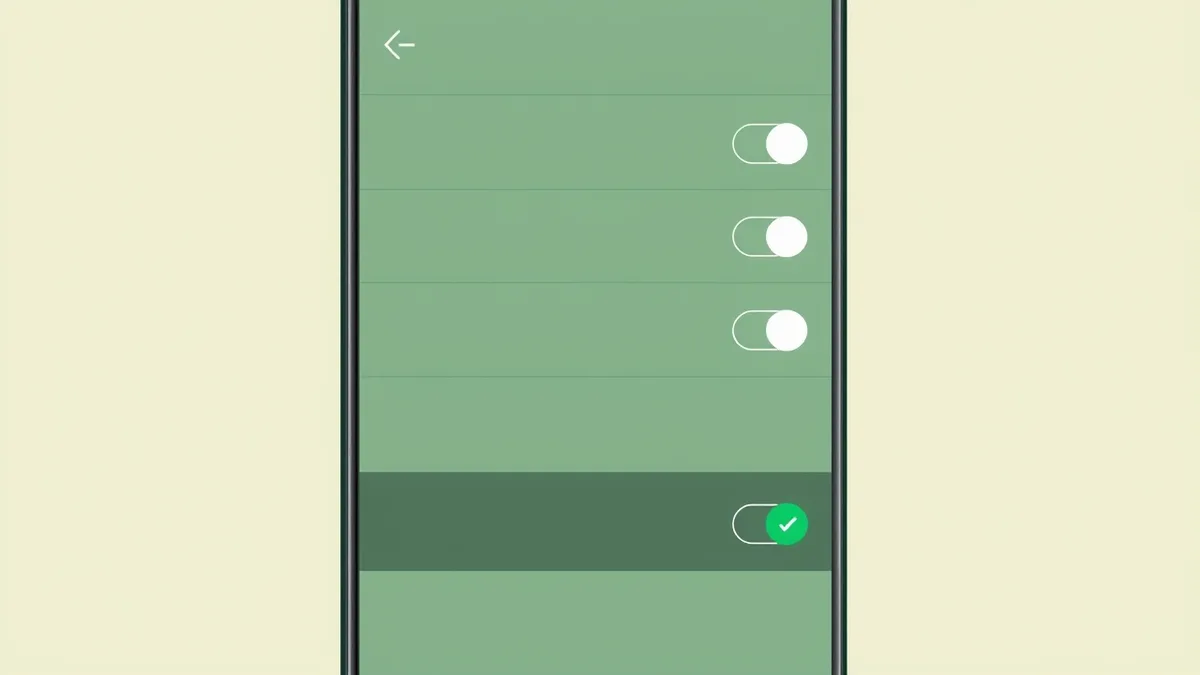
Make sure your Google account is set to either "Push" or "Fetch". "Push" delivers updates instantly, while "Fetch" checks at set times (like every 15 or 30 minutes). If it's set to "Manually," the calendar will only update when you physically open the app, which is easily mistaken for a broken sync.
Practical tips for managing your shared family calendar
You've sorted out the technical side of sharing your Google Calendar on your iPhone. Now for the part that actually saves you time: a few habits that turn a shared calendar from a list of events into something the whole family can read at a glance.
The goal is to make the week easy to scan in a second. The single most effective way to do that is a colour-coding system. It sounds basic, but it cuts the time it takes to spot a clash from minutes to seconds.
Assign a colour to each family member
The first thing to do is dedicate a unique colour to each person. This way, a quick look at the week ahead tells you exactly who needs to be where, and when.
- Blue for Dad's appointments.
- Pink for Mum's meetings.
- Green for whole-family things, like school holidays or bank holidays.
- Yellow for one child's events, like football practice.
- Purple for another child's commitments, like swimming lessons.
This simple bit of organisation makes spotting scheduling conflicts almost effortless. If you see blue and pink overlapping on Tuesday evening, you know you and your partner have a potential diary clash to sort out. Read our guide to creating an effective family shared calendar for more on making this system work smoothly.
Use recurring events and strategic notifications
Stop wasting time manually typing in the same events over and over. For those weekly fixtures like music lessons or bin day, set them up as recurring events. It's a classic 'set it and forget it' move that saves a surprising amount of admin and makes sure nothing gets missed.
Notifications are your best friend, but only if you use them wisely.
Don't set a reminder for every single event. You'll just develop 'notification blindness' and start ignoring them all. Instead, reserve alerts for things that require action. A reminder to leave the house for an appointment, or a heads-up to pick up a birthday present the day before a party. A well-organised calendar gives you a reliable plan for your family's life, handling the 'when' and 'where' so you don't have to.
Bring the calendar, tasks and notes together
A shared calendar fixes the "who is where, and when" question. It does not fix the rest of the household running around it. The dentist appointment sits on the calendar, but the reminder to pick up the prescription, the note on which questions to ask, and the decision about who books the day off all live somewhere else, in a chat thread, a sticky note, or someone's head.
That is the gap OneHaus is built to close. It keeps the shared calendar, the tasks tied to each event, the shopping list, and the family notes in one place on iPhone, so nothing falls through the cracks between apps. It can also import national and religious holidays plus any ICS or webcal feed, such as school term dates, fixtures or bin collection days, directly into the shared calendar: see how to add holidays and calendar feeds. You can start a free 30-day trial and try it with your household. One subscription covers everyone in the home, and it runs on iPhone, iPad, Apple Watch and Android.
Frequently asked questions
Even with the best instructions, a few common questions always seem to pop up when you're trying to get your calendars in sync.
Can I share a Google Calendar without a computer?
You don't need a separate computer, but you do need the desktop version of Google Calendar. The Google Calendar mobile app doesn't have the controls to manage top-level sharing permissions.
The trick is to open calendar.google.com in Safari on your iPhone, tap the aA button in the address bar, choose Request Desktop Website, and you'll get the full sharing settings on the phone in your hand. Once the share is set up, you can see and use the calendar normally in your iPhone calendar app. You can also share individual events straight from the Google Calendar app anytime you like, with no desktop view needed for those.
What is the difference between sharing a calendar and a calendar invite?
Sharing a calendar and sending a calendar invite are different things.
-
Sharing a Calendar gives someone a permanent, ongoing view into your schedule. They can see all your events (or even add their own, depending on the permissions you grant). This is perfect for a partner, family, or a close-knit team where everyone needs to stay aligned.
-
A Calendar Invite (or adding a 'guest') is a one-off for a single event. When you invite someone to a meeting or a party, that specific event appears on their calendar. They don't see anything else on your schedule.
Think of it this way: share your entire calendar with people you live and work with closely. For everyone else, just send an invite for the specific event.
How often does a shared Google Calendar sync on an iPhone?
How quickly updates appear on your phone really depends on which app you're using.
If you use the official Google Calendar app, syncing is practically instant. It uses "push" technology, which means changes are sent to your phone the moment they're made.
If you prefer Apple's native Calendar app, the sync speed is controlled by your iPhone's settings. You can check this under Settings > Calendar > Accounts > Fetch New Data. Google accounts sync on a "Fetch" schedule here rather than push, so choose the shortest interval available, such as every 15 minutes, for faster updates. For the quickest sync, the official Google Calendar app remains your most reliable bet.